
Managing Students
Approving New Students
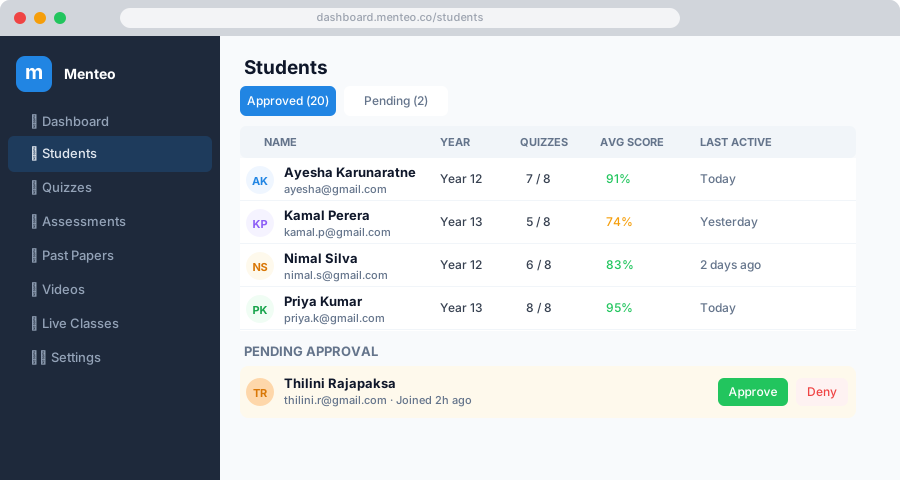
When students sign up for your academy they appear in the Pending tab:
- Click Students in the sidebar
- Open the Pending tab
- For each student:
- Click their name to view their profile
- Click ✓ Approve to grant access
- Click ✗ Reject to decline
- Approved students can immediately access your quizzes, assessments, and resources
TIP
Students can also self-register via your portal if you've enabled open registration.
Viewing Student Progress
- Go to Students → Active
- Click any student's name to see:
- Quiz Results — Scores, attempts, submission times
- Assessment Submissions — Uploaded PDFs and your feedback
- Last Seen — When they last logged in
Sending a Message to a Student
- Go to Students → Active and click a student's name
- Click Send Message
- Type your message and click Send
The student receives it by email and as an in-app notification.
Removing a Student
- Go to Students → Active
- Click the student's name
- Scroll down and click Remove Student
- Confirm — the student loses access immediately (data is archived)
Inviting Students
- Click Students → Invite
- Enter the student's email address
- Click Send Invitation
The student receives an email with a link to join your academy directly.