
Getting Started — Mentor Guide
A complete guide to setting up and running your Menteo academy.
Step 1: Create Your Academy
- Go to menteo.co and click "Create your tutor account free"
- Fill in your details:
- Full Name — Shown on your academy portal
- Email Address — Use an email you check regularly
- Password — At least 8 characters with uppercase and numbers
- Accept the terms and click Create Account
Step 2: Choose Your Academy Address
After sign-up you'll set your academy's web address:
| Field | Example | Notes |
|---|---|---|
| Academy Name | Sarah's Maths Academy | Visible to students |
| Web Address | sarah-maths.menteo.co | Auto-generated, editable |
| Category | Tuition / Test Prep / Tutoring | Shown on your portal |
TIP
Your web address can be changed later in Settings → Basic Details.
Step 3: Choose Your Plan
| Plan | Students | Quizzes | Price |
|---|---|---|---|
| Free | 10 | 5 | Free |
| Pro | 50 | Unlimited | ₹4,500/mo |
| Enterprise | Unlimited | Unlimited | ₹6,500/mo |
Select Free to explore all features without payment.
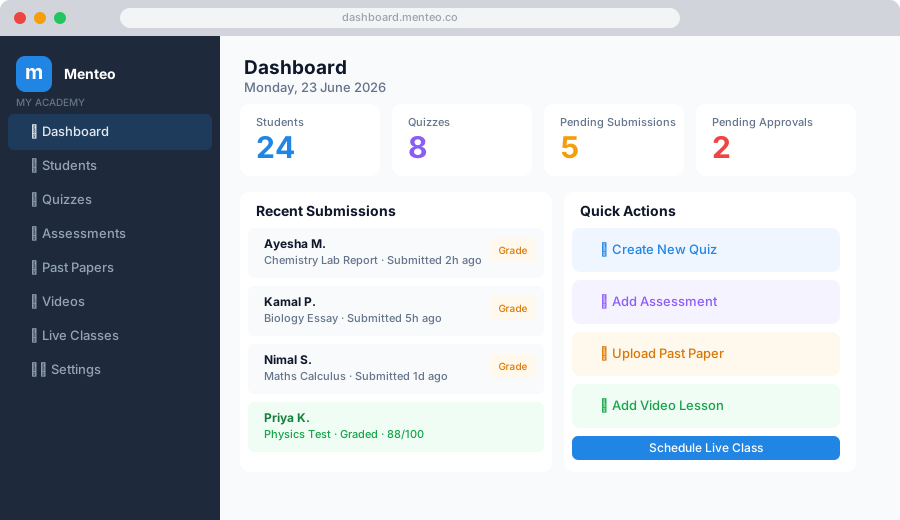
Dashboard Overview
Once logged in you'll see your Home page:
Stats at a Glance
- Active Students — Approved students in your academy
- Average Score — Aggregate quiz performance
- Pending Reviews — Assessments awaiting grading
- Live Classes — Upcoming scheduled meetings
Navigation (Left Sidebar)
| Section | Purpose |
|---|---|
| Home | Stats, upcoming classes, recent activity |
| Students | Approve students, view profiles |
| Quizzes | Create auto-graded multiple-choice quizzes |
| Assessments | Set PDF-submission assessments |
| Past Papers | Upload exam papers by year/subject |
| Videos | Host YouTube/Vimeo lessons |
| Live Classes | Schedule and host Zoom sessions |
| Notifications | All student communication |
| Settings | Branding, billing, security |
Profile Setup
Add a Profile Photo
- Go to Settings → Basic Details
- Click your avatar in the top-right corner
- Upload an image (JPG, PNG, under 5 MB)
Connect Zoom for Live Classes
- Go to Settings → Basic Details → Zoom Integration
- Click Connect Zoom Account
- Authorize Menteo in the Zoom screen
- Zoom is now linked — you can schedule classes directly from Menteo
Notification Preferences
Go to Settings → Preferences to configure:
- Email — Alerts for student submissions and quiz completions
- In-App — Bell icon notifications on your dashboard