
Creating Quizzes
Quizzes are auto-graded multiple-choice tests. Students see their score instantly.
Create a New Quiz
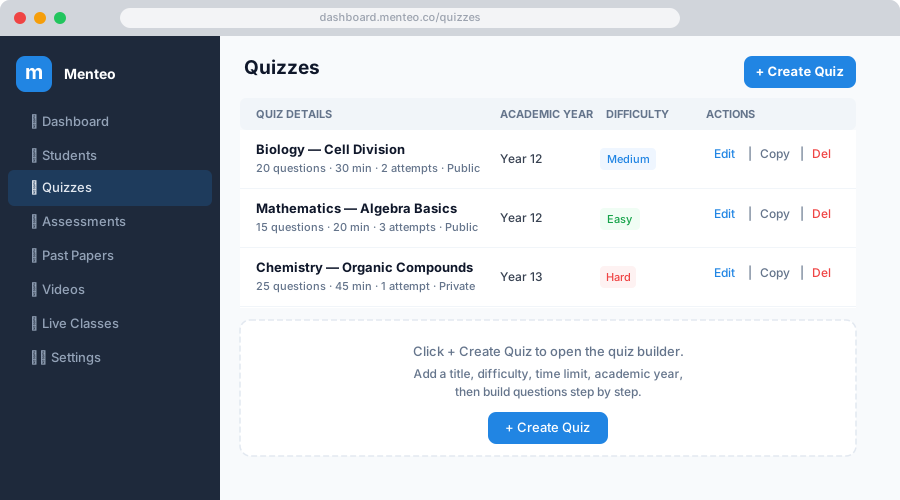
- Click Quizzes in the sidebar
- Click + New Quiz
- Fill in the Details step:
| Field | Description |
|---|---|
| Quiz Title | e.g. "Chapter 3 — Algebra Basics" |
| Description | Optional context shown to students |
| Academic Year | Which year group(s) this is for |
| Exam Date | When the quiz becomes available |
| Deadline | Last date for submission |
| Difficulty | Easy / Medium / Hard |
| Time Limit | Minutes allowed per attempt |
| Max Attempts | How many times a student can retry |
| Make Public | Guest (unauthenticated) students can access |
Add Questions
- Move to the Questions step
- Click + Add Question
- For each question:
- Enter the question text (or upload an image)
- Add at least 2 answer options
- Mark the correct answer
- Optionally add an explanation shown after submission
Example:
Question: What is the capital of France?
  ○ Berlin     — Explanation: Capital of Germany
  ● Paris      — Explanation: Correct — capital since the 12th century
  ○ Madrid     — Explanation: Capital of Spain
TIP
You can upload images for question stems and individual answer options — useful for diagrams, graphs, and scientific figures.
Review & Publish
- Move to the Review step to preview the full quiz
- Click Publish
The quiz is immediately visible to the selected year group(s).
Editing a Quiz
- Click the quiz title in the list
- Click Edit
- Make changes across any step
- Click Save Changes
Previously submitted results are preserved — editing questions does not invalidate past attempts.
Duplicating a Quiz
Click ⋮ → Duplicate on any quiz to create a copy. The copy starts as a draft (unpublished).
Viewing Quiz Results
- Click Quizzes → click a quiz name → open Analytics
- See:
- Average score across all attempts
- Per-student breakdown (name, score, time taken, accuracy)
- Per-question accuracy — identify where students struggle most
- Click a student's row to see their individual answers
Deleting a Quiz
Click ⋮ → Delete on the quiz. All associated attempts and results are permanently removed.