
Assessments & Grading
Assessments are PDF-based submissions that you grade manually. Use them for essays, structured questions, and projects.
Create an Assessment
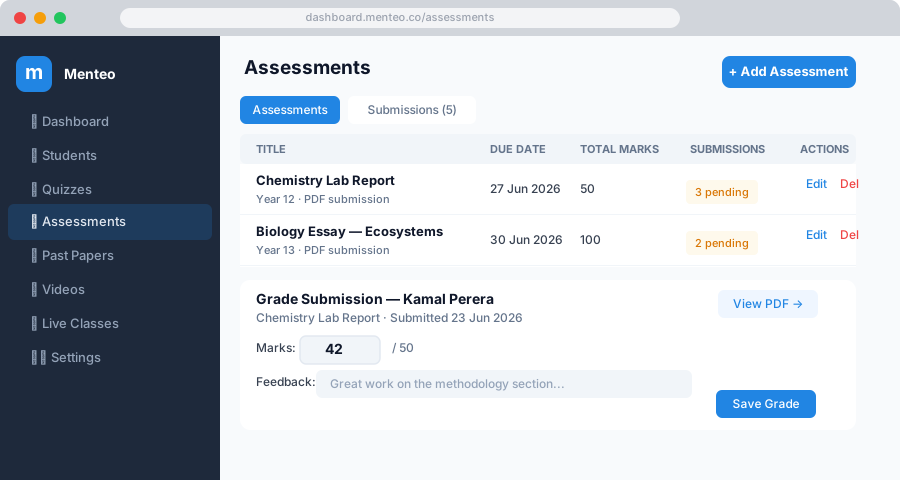
- Click Assessments in the sidebar
- Click + New Assessment
- Fill in:
| Field | Description |
|---|---|
| Title | e.g. "Unit 3 Physics Test" |
| Description | Instructions or context for students |
| Due Date & Time | Submission deadline |
| Total Marks | Maximum marks available |
| Academic Year | Which year group(s) this is for |
| Upload Question Paper | PDF file students download to answer |
| Make Public | Allow guest (unauthenticated) students to view |
- Click Create Assessment
Viewing Submissions
- Click Assessments → click an assessment → click Submissions
- See all students with their submission status:
| Status | Meaning |
|---|---|
| Pending | Student has not yet submitted |
| Submitted | PDF received, awaiting your grade |
| Graded | You've assigned marks and feedback |
Grading a Submission
- In the Submissions view, find a student with Submitted status
- Click Grade
- A grading panel opens:
- Download PDF — View the student's answer sheet
- Marks — Enter a number between 0 and the total marks
- Feedback — Write comments the student will see
- Click Save Grade
The student receives an in-app and email notification immediately.
WARNING
Marks cannot exceed the total marks set when creating the assessment.
Editing a Grade
Grades can be updated anytime:
- Find the graded student in the Submissions list
- Click Edit Grade
- Update marks or feedback
- Click Save Grade
Editing an Assessment
- Click Assessments → click ⋮ → Edit on the assessment row
- Update any field (title, description, due date, total marks, year group)
- You can optionally replace the question paper PDF
- Click Save Changes
Deleting an Assessment
Click ⋮ → Delete on the assessment. All submissions and grades are permanently removed.
DANGER
This cannot be undone. Download any grades you need before deleting.